
How to Rotate and Flip Images Online (Any Angle)
Learn how to rotate images by any angle or flip them horizontally and vertically. Free online image rotator and mirror tool with no quality loss.
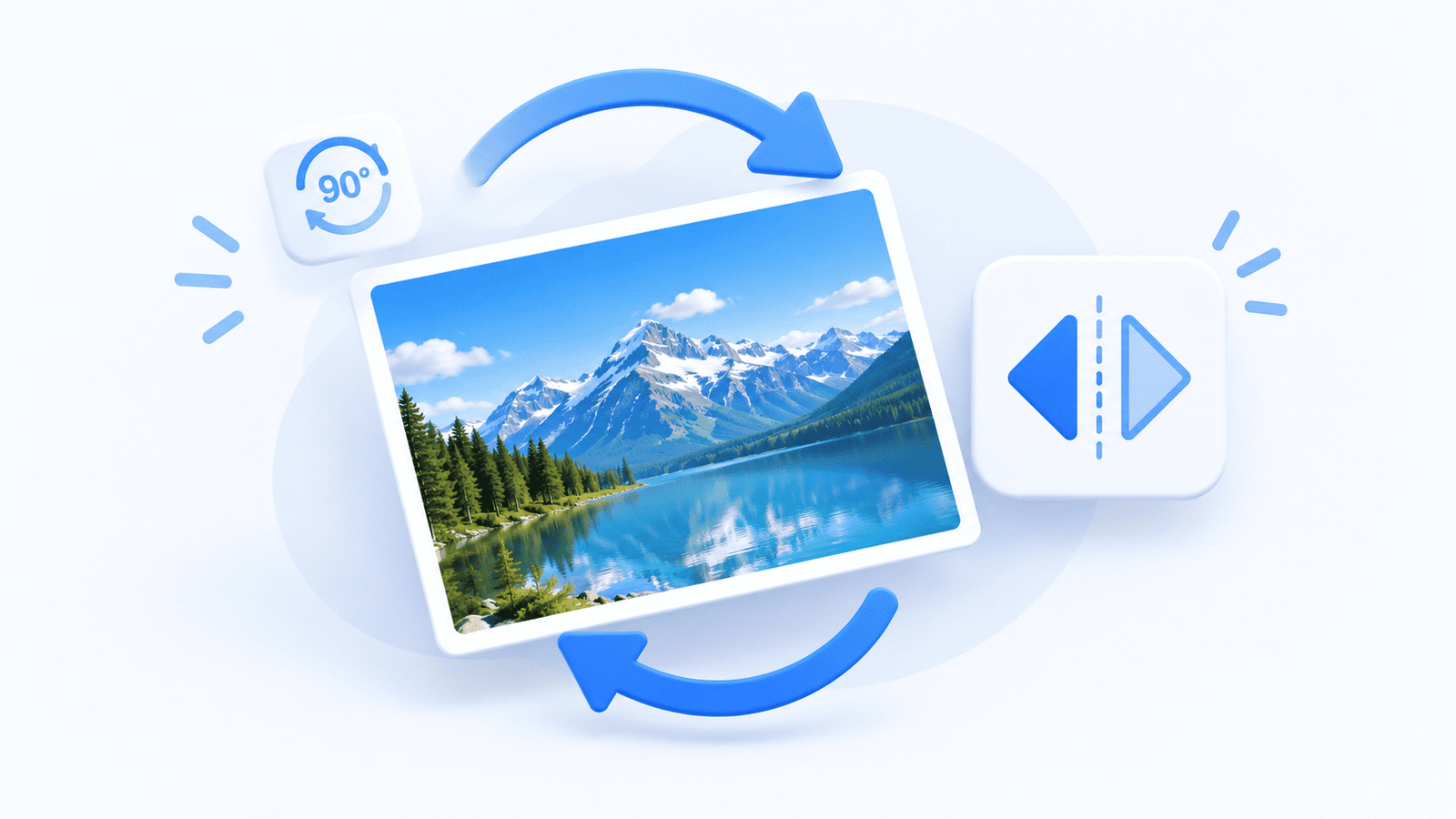
Sometimes a photo looks better upside down, or a selfie needs to be mirrored to look right. Rotating and flipping images are basic editing tasks that you should not need expensive software for.
Real-world Example: You took a picture on your phone, but the orientation got saved sideways. Or, you are designing a logo and want to see how it looks flipped horizontally before finalizing it. Using ImgSwift's Rotate & Flip Tool, you can fix the orientation or mirror the image instantly without losing an ounce of quality.
Why choose ImgSwift? Other tools often make you download a heavy app just to rotate a photo. ImgSwift works instantly in your browser. You can rotate by any custom angle (not just 90 degrees), choose your background color for the empty corners, and export in high quality.
Quick Answer: How Do You Rotate or Flip an Image?
Open ImgSwift's Rotate & Flip tool, upload your image, select the rotation angle (or check the flip boxes), and click download.
How to Rotate an Image by Any Angle
- Upload Your Image: Go to ImgSwift Rotate & Flip and upload your file.
- Choose Rotation: Use the quick buttons for 90°, 180°, or 270°. Or, type a custom angle (like 45°) in the box.
- Choose Background: If you rotate by a custom angle, the corners will be empty. Choose a background color (white, black, or transparent PNG).
- Download: Click the button to save your rotated image.
How to Flip or Mirror an Image
Flipping is different from rotating. Flipping creates a mirror image.
- Flip Horizontal: Makes the left side the right side (great for fixing mirror selfies).
- Flip Vertical: Turns the image upside down.
Simply check the box in the ImgSwift tool and hit download.
Frequently Asked Questions
Does rotating an image reduce its quality?
No, rotating an image mathematically moves the pixels. If you use a high-quality tool like ImgSwift and save as PNG, you will not see any quality loss.
What is the difference between rotating and flipping?
Rotating turns the image around a central point (like turning a steering wheel). Flipping creates a mirror reflection across a horizontal or vertical axis.
Can I rotate an image on my phone?
Yes, ImgSwift is mobile-friendly. Just open the Rotate & Flip tool in your mobile browser.
About the Author: Written by the ImgSwift Editorial Team. We are a group of developers and digital creators passionate about building fast, private, and browser-based image processing tools to make your workflow easier.